
- Apps


 Easy Bundle ‑ Product Builder
All-In-One bundle builders
 Qe Slider ‑ Carousel Slider
Elevates Revenue with Slick Slider
 Qe Seasonal Effects & Decor
Add Festive Seasonal Decorations
 Qe Quick Link Redirect
Fix Broken Links Effortlessly
 Qe Frequently Bought Together
Boost Sales with Smart Upsells
 QeApps ‑ Mobile App Builder
No-code Mobile App Builder
 Qe Product Compare
Allowing Shoppers to Compare Items
 Discount Bulk Volume Quantity
Create Custom Product Bundles
 Sticky Cart+ Fly Cart
Add Fly-to-Cart Animations.
 QeCart ‑ Slide Out Cart
Add Dynamic Slide-out cart
 Qe Speechify | Voice Search
Seamless Voice Search Functionality
 Qe FAQ Page & Product FAQs
Customizable Product FAQs
 ATC Button Animation
Add to Cart Button Animations
 Qe CountDown Timer
Create Urgency With Timers
 Qe Auto Gift Add-on
Add Free Gifts Automatically
 Qe Custom Reports – Exporter
Export Custom Store Reports
 Qe Ai SEO
Generate SEO-Ready Blog Posts
 Qe AI Content Generator
Create SEO-Friendly Content
 AI CRO Find Fix Revenue Leaks
Find and Fix Conversion Leaks
 Qe Cart Upsell
Increase Sales With Upsells

Explore Our Shopify Apps to Grow Your Store
- Check Our Apps

Increase AOV at Every Step of the Journey
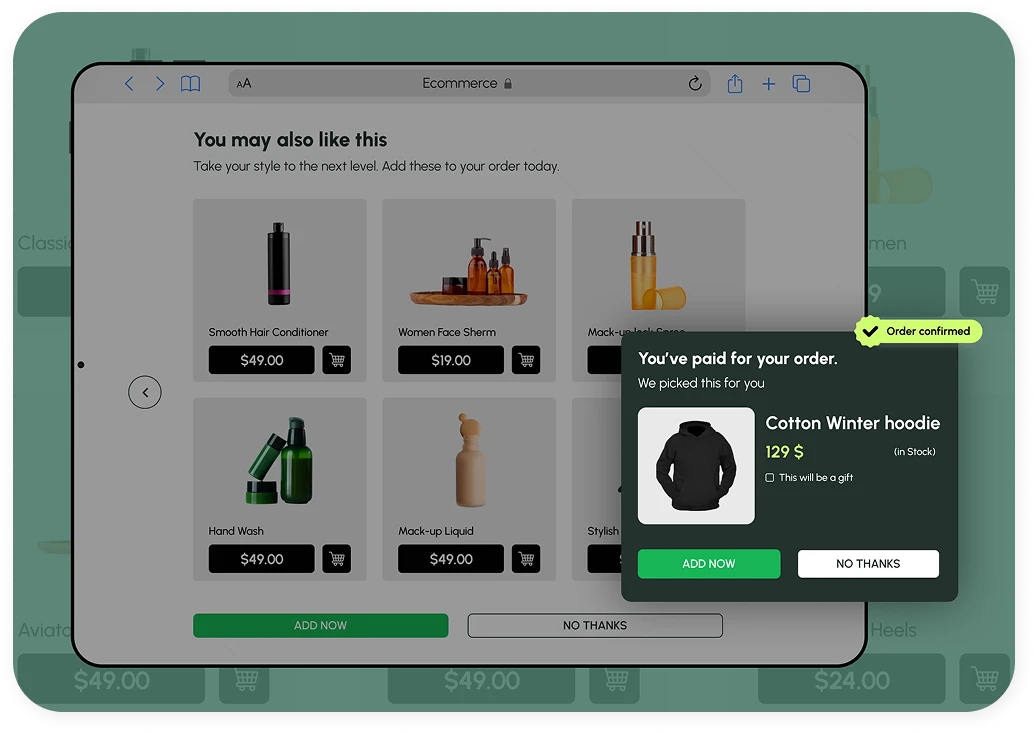
Qe Cart Upsell shows upsell and cross-sell offers on your product, cart, checkout, post-purchase and thank you pages, with timers, multi-product picks and one-click add.

One App. Four Moments to Add More.
Shoppers are ready to add more at different points, so one offer in one place is rarely enough. Qe Cart Upsell puts a relevant offer at each stop.
Product Page
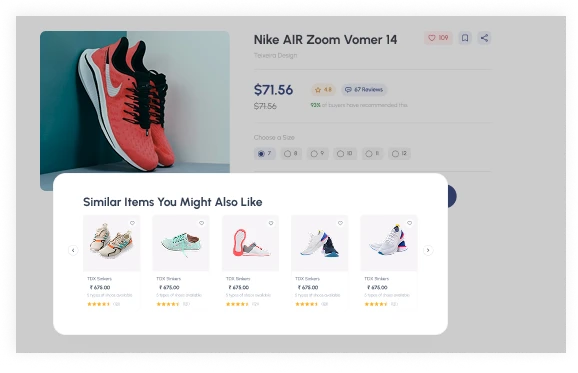
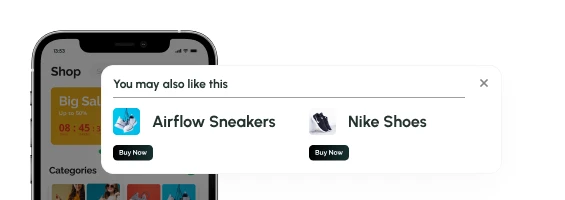
 Suggest related products and add-ons at the right moment, before shoppers reach the cart.
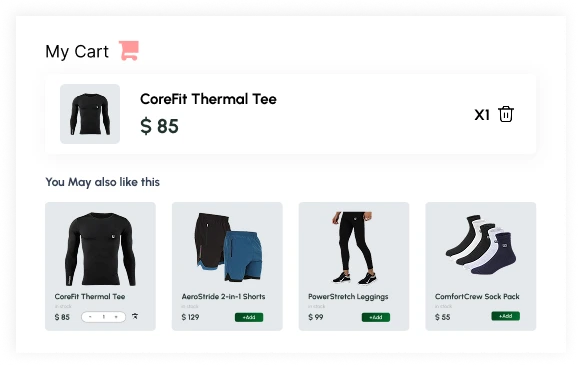
Cart
-
Complete the order with extra items shoppers can tick, size and add in the cart.
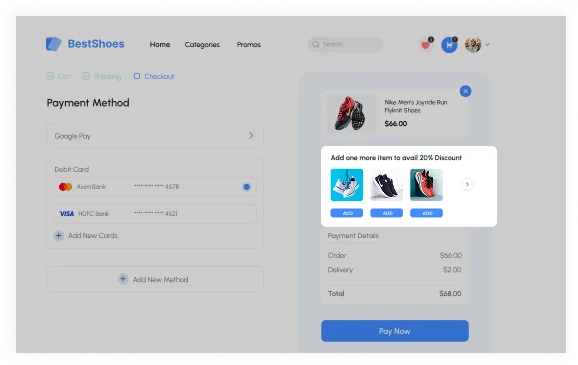
Checkout
-
Make an extra offer from Shopify's native checkout, right before payment.
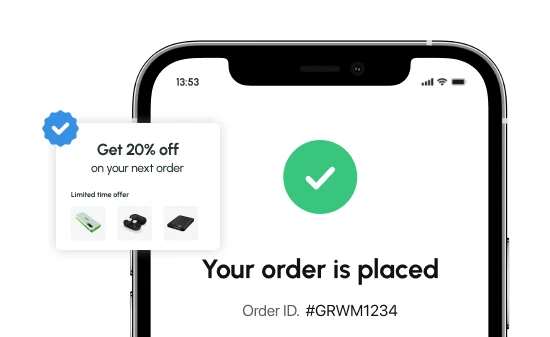
Post-Purchase
-
Offer one more item once the order is paid, on the post-purchase and thank you pages.
Built to Make Every Offer Easy to Say Yes To
Everything shoppers need to add an item in one click and everything you need to control it.
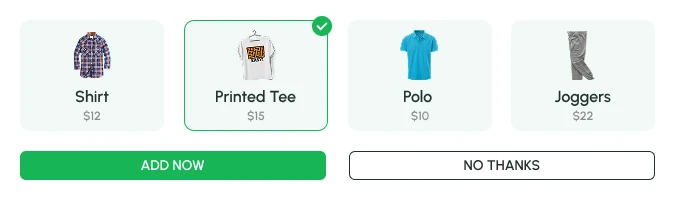
Multi-Product Offers
Show several related products at once. Shoppers tick what they like, adjust the quantity and add them together.
Countdown Timers
Add a ticking timer so an offer such as "ends in 3h 55m 32s" encourages a quicker decision.
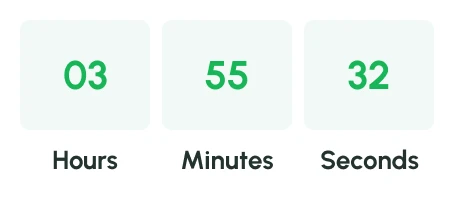
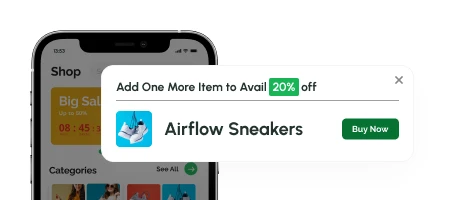
Popup or Embedded
Show an offer as a popup or as an embedded block that sits in your store layout.
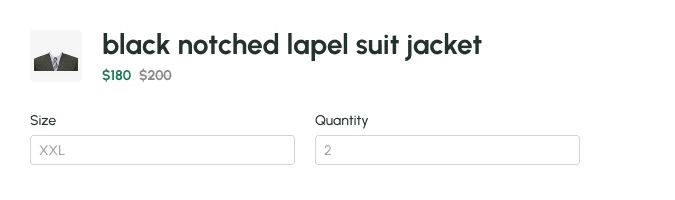
Variants and Quantity. Right in the Offer
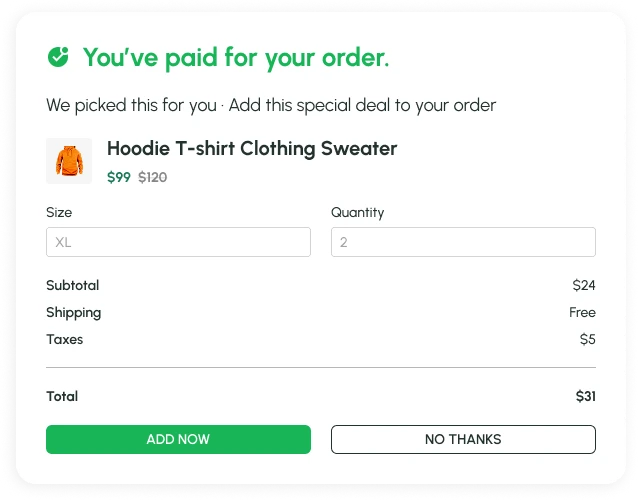
Let shoppers pick a size and quantity inside the offer, with a special deal price shown beside the original.
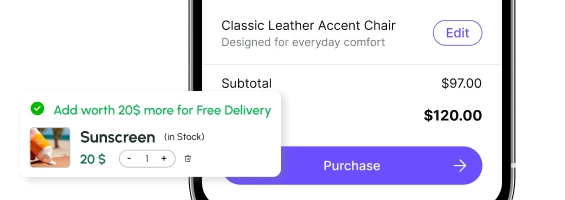
Native Checkout and Thank You Pages
Make additional offers right from Shopify's native checkout and thank you pages, using Shopify extension blocks.
Smart Targeting
Promote related products and upgrades to the shoppers they suit, instead of one offer for everyone.
Increase Revenue Even After Checkout
Once the order is paid, shoppers are at their most confident. Present an offer on the post-purchase page and let customers add products to their order instantly, without re-entering payment details.
Full Control Over Offer Priority
Choose which upsell appears first. Select your products, then drag them into the order you want shoppers to see.
01
Install Qe Cart Upsell from the Shopify App Store.
02
Choose the offer type and select your upsell products.
03
Drag to set the priority, then publish.
 Blue Sneakers
 Sunglasses
 Orange Top
An Upsell for Every Kind of Store
Ideas by Store Type

Fashion
Sunglasses with sneakers, shown on the product page.

Beauty
A travel size or refill in the cart.

Home
A cushion or protector with a larger item.

Electronics
Headphones or a smart watch at checkout.

Fitness
A shaker or sample pack after purchase.

Food
A pantry add-on on the thank you page.

Gifts
A card or wrapping upgrade in the cart.

Pet supplies
A treat or toy that goes with the main item.
Qe Cart Upsell vs Manual Suggestions
- Offers on product, cart, checkout, post-purchase and thank you pages
- Popup or embedded display
- Countdown timers on offers
- One-click add, with variant and quantity choice
- Drag-to-reorder offer priority
- Offers managed from the app admin
- Suggestions in a few spots, if any
- One fixed layout
- No sense of urgency
- Shoppers search for the extra item
- No control over what shows first
- Each change needs a theme edit
Free to Install. Offers on Every Page.
Give shoppers a reason to add one more item at every step of their visit, from the product page to the thank you page.
Monthly Plan
$0/Month
- Product, cart, checkout and thank you offers
- Post-purchase upsell
- Countdown timers
- Popup or embedded display
- Works with Shopify Checkout


Get Started Today
Show the right offer at every step, and give shoppers an easy way to add one more item.



Frequently Asked Questions
How do I add upsell offers to my Shopify store?
Is there a free Shopify upsell app?
What is the difference between an upsell and a cross-sell?
Can I upsell after checkout without asking for payment details again?
Can I show upsell offers in Shopify checkout?
Let’s Get in Touch Us
We love hearing from you, please drop us a note anytime. Got any questions or suggestions, or just want to know what we can do to improve your eStore?


 [email protected]
 +91 95747 42204
 9th Floor, Solitaire Connect, Near Gallops Motors, SG Highway, Ahmedabad, Gujarat 380015


