
- Apps
 BYOB ‑ Bundle Gift Box Builder
Build your Own Box
 Easy Bundle ‑ Product Builder
All-In-One bundle builders
 Checkout Blocks & Customizer
Checkout Customization
 Qe Slider ‑ Carousel Slider
Elevates Revenue with Slick Slider


 Qe Seasonal Effects & Decor
Add Festive Seasonal Decorations
 Qe Quick Link Redirect
Fix Broken Links Effortlessly
 Qe Frequently Bought Together
Boost Sales with Smart Upsells
 QeApps ‑ Mobile App Builder
No-code Mobile App Builder
 Qe Product Compare
Allowing Shoppers to Compare Items
 Qe Multiship
Ship Items to Multiple Addresses
 Discount Bulk Volume Quantity
Create Custom Product Bundles
 Sticky Cart+ Fly Cart
Add Fly-to-Cart Animations.
 QeCart ‑ Slide Out Cart
Add Dynamic Slide-out cart
 Qe Speechify | Voice Search
Seamless Voice Search Functionality
 Qe FAQ Page & Product FAQs
Customizable Product FAQs
 ATC Button Animation
Add to Cart Button Animations

Explore Our Shopify Apps to Grow Your Store
- Check Our Apps


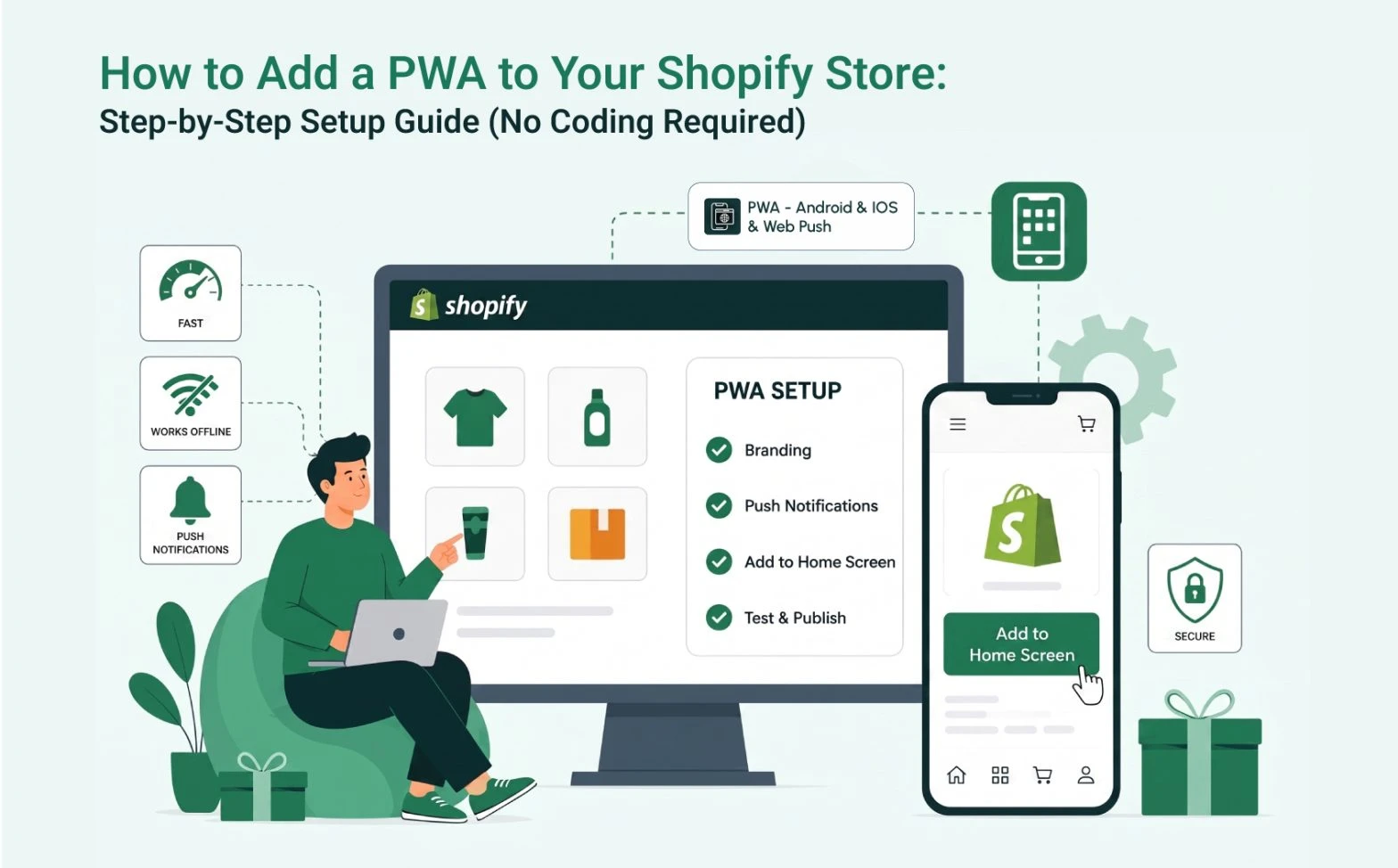
Building a mobile app sounds expensive and complicated for many Shopify merchants. You picture months of development, a developer on retainer, and two separate app store submissions before a single customer taps “install”. That’s exactly why most stores never go ahead with it, even though mobile traffic keeps climbing every year.
A Shopify PWA changes that equation. Instead of building a native app from scratch, you turn your existing store into something that installs straight from the browser, sits on your customer’s home screen, and opens like a real app. No App Store review. No Google Play submission. No developer required.
This guide walks through exactly how to add a PWA to your Shopify store, what to prepare beforehand, and where most merchants go wrong during setup. By the end, you’ll know whether a Progressive Web App suits your store and how to get one live this week.
What Is a Shopify PWA?
A Shopify PWA (Progressive Web App) is a version of your store that customers can install directly to their phone’s home screen from their browser. It loads fast, works offline for recently viewed pages, and opens in its own window without browser tabs or address bars, much like a downloaded app, but without the download.
Technically, a PWA combines three things: a web app manifest (which tells the browser your store’s name, icon and colours), a service worker (which caches pages so they load instantly on return visits), and secure HTTPS delivery. Shopify already provides the HTTPS layer, so a PWA app mainly needs to add the manifest and service worker on top of your existing theme.
Merchants are adopting PWAs because mobile shopping behaviour has shifted. Shoppers browse on their phones throughout the day, in short sessions, often while doing something else. A site that opens instantly from the home screen fits that habit far better than a bookmark or a search result they have to find again.
Why You Don’t Need Coding to Create a Shopify PWA
Traditional native app development means hiring an iOS developer, an Android developer, and usually a backend engineer to keep both in sync with your store’s inventory and pricing. Add app store review delays, ongoing OS updates, and bug fixes across two codebases, and a project that started as “let’s get an app” can stretch into a six-figure commitment.
A no-code Shopify PWA app removes nearly all of that. You install it from the Shopify App Store, connect it to your existing theme, and configure branding through a dashboard rather than a code editor. Most non-technical store owners have something live within a few minutes rather than a few months, and there’s no separate codebase to maintain afterwards because the PWA simply sits on top of your live store.
Qe PWA is one of the apps built specifically around this kind of setup. It also carries Shopify’s Built for Shopify badge, which Shopify awards to apps that meet its highest standards for performance, quality and user experience, and it’s the one we’ll walk through step by step below.
Things to Prepare Before Setting Up a PWA
A smooth setup takes less time if you gather these first:
- An active Shopify store on any plan, ideally running an Online Store 2.0 theme
- Theme compatibility check (most modern themes work without edits)
- Branding assets, including a square logo and any brand colours you use elsewhere
- A store icon sized for app home screens, usually at least 512x512px
- Push notification preferences, such as which events should trigger alerts (new arrivals, restocks, abandoned carts)
Having these ready before you start means you won’t be pausing mid-setup to find a logo file.
Quick Insight
Before you install anything, open your store on your own phone and try adding it to your home screen through your browser menu. This shows you exactly what customers see today, so you have a clear before-and-after once Qe PWA is live.
With those basics sorted, here’s how the actual setup looks using the Qe PWA, from install to publish.
Step-by-Step Guide to Add a PWA to Shopify
Step 1: Install the Qe PWA App
Head to the Shopify App Store and install Qe: PWA for iOS & Android. Once installed, the app reads your existing theme and store details automatically, so there’s nothing to rebuild. You’ll land on a setup dashboard inside your Shopify admin rather than a separate platform, which keeps everything in one place.
Step 2: Configure Store Branding
Upload your app icon, choose your splash screen colours, and pick a theme colour that matches your storefront. This is the screen customers see for a split second while your store loads after tapping the icon, so it’s worth getting the colours right rather than leaving defaults in place.
Quick Insight
Export your icon at 512x512px or larger. A blurry or stretched icon is one of the fastest ways to make an otherwise polished setup look unfinished on a customer’s home screen.
Step 3: Enable Push Notifications
Turn on push notifications for both Android and iOS. This is one of the biggest practical differences between a regular mobile site and a PWA: once a customer installs your store, you can message them directly about restocks, price drops or abandoned carts, without relying on email open rates or social algorithms.
Start with one notification type, such as back-in-stock alerts, rather than switching everything on at once. Customers who get one relevant message are far more likely to keep notifications turned on than customers who get several generic ones in their first week.
Step 4: Configure Install Prompt
Set when and how the “add to home screen” prompt appears. You can choose to show it after a customer’s second visit, after they’ve added something to their basket, or on a delay, so it doesn’t interrupt someone who just landed on your store for the first time.
Step 5: Test Your PWA Experience
Open your store on an Android phone and an iPhone, then try the install flow on each. Check that the icon displays correctly, that the splash screen loads, and that navigation feels smooth. A few minutes of testing here catches issues before customers ever see them.
Quick Insight
Hand your phone to someone who has never seen your store and ask them to install it and find a product. Wherever they hesitate is exactly where your customers will hesitate too.
Step 6: Publish and Monitor
Once everything looks right, publish the PWA live. From here, keep an eye on install rates and push notification engagement inside your dashboard, and adjust your install prompt timing or notification frequency based on what the data shows over the following weeks.
How Customers Experience Your Store After PWA Setup
Once installed, your store behaves differently for the customer in small but meaningful ways. Pages they’ve already viewed load almost instantly because they’re cached rather than fetched fresh each time. Your icon sits among their other apps rather than buried in browser history. There’s no address bar, no tabs, and no “which one of my 40 open tabs was that store again.”
That convenience tends to show up in behaviour, not just impressions. Customers who’ve installed a store’s PWA come back more often simply because returning takes one tap instead of a search, and the experience itself feels closer to a native app from the first launch.
Benefits of Adding a PWA to Shopify
- Faster shopping experience through cached pages and assets
- Lower development costs compared with building native apps
- Better customer retention, since the store stays one tap away
- Improved engagement through direct push notifications
- More repeat visits from home-screen installs
- Easier maintenance, since there’s no separate codebase to manage
- An app-like experience without any app store dependency
Common Mistakes Merchants Make During Setup
Ignoring branding: Leaving default icons and splash colours in place makes the install feel generic rather than like your brand, which can quietly lower install rates.
Not testing the installation flow: Skipping a real test on an iPhone and an Android device means you might not notice a misaligned icon or a blocked prompt until a customer mentions it.
Skipping notifications: Installing the app but never enabling push notifications leaves one of the biggest engagement tools unused.
Forgetting optimisation: Treating the PWA as a one-time setup rather than checking install and engagement data every few weeks means missed opportunities to improve prompt timing or messaging.
Why More Shopify Brands Are Choosing PWAs
Full PWA adoption is still genuinely rare across the web, which is exactly why early movers stand out. According to Shopify’s own research citing HTTP Archive’s 2025 Web Almanac, only around 3.5% of mobile sites currently combine both a web app manifest and a service worker into a complete PWA, even though core PWA technologies have spread fast since 2022.
That gap matters for merchants because most competitors haven’t made the switch yet. With mobile devices already responsible for the majority of global web traffic, a faster, installable storefront is one of the more straightforward ways to stand apart from stores that still load like a typical mobile website.

How Qe PWA Makes Setup Easier
Qe PWA was built specifically for merchants who want the benefits of a Progressive Web App without hiring a developer or learning new software. It holds Shopify’s ‘Built for Shopify’ badge, setup happens inside your Shopify admin, branding is handled through simple upload fields rather than code, and push notifications work across both Android and iOS from the same dashboard.
Because it works with all Online Store 2.0 themes, there’s no risk of conflicting scripts or a broken layout after installation. If something doesn’t look right, support is on hand to help rather than leaving you to dig through documentation alone. For merchants whose traffic is already mostly mobile, it’s one of the quicker wins available this quarter.
Final Thoughts
If most of your traffic is already arriving on phones, adding a PWA to your Shopify store is one of the more practical upgrades available without a custom development budget. It takes minutes to install, requires no code, and gives customers a faster, more convenient way to come back to your store.
Start with the basics: get your branding right, test the install flow properly, and turn on push notifications from day one. The setup itself takes far less time than most merchants expect, and the impact on repeat mobile visits tends to show up quickly.
Install Qe PWA from the Shopify App Store and have your store live as a home screen app within minutes, complete with your own branding, the Built for Shopify badge, and push notifications from day one.
Frequently Asked Questions
Q.1 Can I turn my Shopify store into an app without coding?
Yes. Apps such as Qe PWA install from the Shopify App Store and convert your existing store into an installable PWA without any code changes.
Q.2 How do I add a PWA to Shopify?
Install a PWA app from the Shopify App Store, configure your branding and notification settings, test the install flow on Android and iOS, then publish.
Q.3 Does Shopify support Progressive Web Apps?
Yes. Shopify stores can run as PWAs through dedicated apps that add the required manifest and service worker on top of your theme.
Q.4 Is a PWA better than a mobile app?
A PWA is faster and cheaper to launch and maintain, while a native app offers slightly deeper offline access and hardware integration. Many merchants start with a PWA and consider a native app later as traffic grows.
Q.5 Do customers need to download anything?
No. Customers install the PWA directly from their browser with one tap, with no app store download required.
Related Blogs



 [email protected]
 +91 95747 42204
 9th Floor, Solitaire Connect, Near Gallops Motors, SG Highway, Ahmedabad, Gujarat 380015


