
- Apps

 Easy Bundle ‑ Product Builder
All-In-One bundle builders
 Checkout Blocks & Customizer
Checkout Customization
 Qe Slider ‑ Carousel Slider
Elevates Revenue with Slick Slider


 Qe Seasonal Effects & Decor
Add Festive Seasonal Decorations
 Qe Quick Link Redirect
Fix Broken Links Effortlessly
 Qe Frequently Bought Together
Boost Sales with Smart Upsells
 QeApps ‑ Mobile App Builder
No-code Mobile App Builder
 Qe Product Compare
Allowing Shoppers to Compare Items
 Qe Multiship
Ship Items to Multiple Addresses
 Discount Bulk Volume Quantity
Create Custom Product Bundles
 Sticky Cart+ Fly Cart
Add Fly-to-Cart Animations.
 QeCart ‑ Slide Out Cart
Add Dynamic Slide-out cart
 Qe Speechify | Voice Search
Seamless Voice Search Functionality
 Qe FAQ Page & Product FAQs
Customizable Product FAQs
 ATC Button Animation
Add to Cart Button Animations

Explore Our Shopify Apps to Grow Your Store
- Check Our Apps


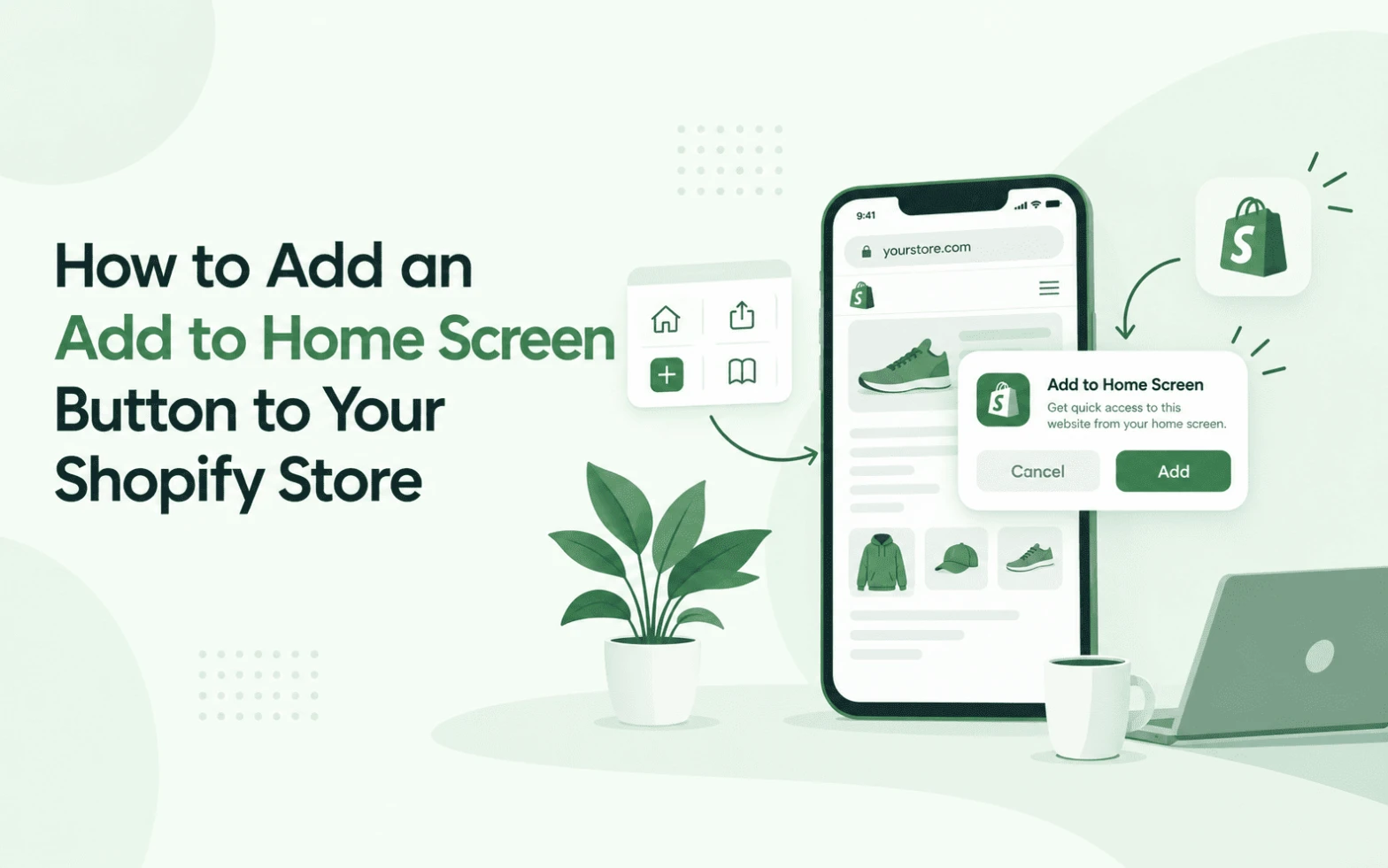
Add to home screen Shopify setups let shoppers save your storefront to their phone so it opens more like an installed app than a website they have to search for again. The exact steps depend on whether the customer is on Android or iPhone and whether your store is set up as a true Shopify PWA rather than just a bookmark with a new label.
Here is the problem most merchants run into. Mobile traffic keeps growing, but once a customer closes the browser tab, your store is competing with every other app and website on their phone for the next open. A home screen icon gives your brand a small, permanent place on that device instead of relying on the customer remembering your name or digging through their browser history.
This guide walks through what the feature actually does, how it works differently on Android and iPhone, what a store needs technically to support it, and when it makes sense to use a dedicated Shopify PWA app instead of piecing it together yourself.
What Does “Add to Home Screen” Mean on Shopify?
Add to home screen lets a shopper create an icon on their phone that opens your Shopify store directly, without typing a URL or searching Google again. Depending on how the store is set up, that icon can behave in one of two ways.
At the basic level, it works like a bookmark with a nicer icon. Tapping it opens the browser and loads your site inside the usual browser window, address bar and all.
At the more advanced level, if your store meets the technical criteria for a Progressive Web App, the same tap opens the store in a standalone window. No address bar, no browser tabs, no back button hunting. It looks and feels closer to a native app, even though it is still your Shopify storefront running in a browser engine behind the scenes.
That second version is what most merchants actually picture when they think about giving customers an app-like store. It is also the version that takes more than a single HTML button to build properly.
Why Should Shopify Stores Add a Home Screen Experience?
Easier repeat access. A shopper who liked what they saw last week does not need to remember your brand name or scroll through search results. They tap the icon and land straight on your homepage.
A persistent brand touchpoint. Instead of one browser tab among dozens, your store gets a permanent spot next to the apps a customer already opens daily.
App-like browsing. A properly installed PWA opens full screen, without the address bar and navigation chrome of a normal browser tab, which can reduce the sense that shoppers are “just browsing” and more that they are inside your store.
Better mobile continuity. This matters most for merchants whose customers browse across several sessions before buying, such as fashion, home decor or beauty brands where people compare products before committing.
Additional PWA capabilities. Where the browser and device support it, a PWA can also offer push notifications and limited offline browsing. Support varies by platform, so it is worth checking what actually works on iPhone versus Android before promising either to your team.
Google’s own developer guidance on installable web apps notes that shoppers who add an app to their home screen tend to come back to it more often than those who only bookmark a site, which is part of why the install prompt itself matters more than it might seem.
| Experience | Normal Shopify Website | Installed Shopify PWA |
| Opens in a browser tab | Yes | Not necessarily |
| Home screen access | Bookmark or shortcut only | Yes |
| Standalone, app-like window | Limited | Yes |
| Push notifications | Not inherently | Supported where the browser and OS allow |
| Offline browsing | Limited | Possible through PWA functionality |
| Separate native app required | No | No |
How Does Add to Home Screen Work on Android?
On Android, Chrome and most Chromium-based browsers can show an install prompt automatically once a site meets the technical requirements for a PWA. Shoppers see a banner or an “Install” option, tap it, and the store icon appears on their home screen within seconds.
If the site does not meet those requirements, Android still offers a manual “Add to Home Screen” option through the browser menu, but that version behaves more like a shortcut than an installed app. It opens the store inside the browser rather than in a standalone window.
This is where browser and device differences start to matter for merchants. A store that passes Chrome’s installability checks gets the fuller, app-like experience automatically. One that does not still gets a home screen icon, just a less impressive one.
How Do You Add a Shopify Store to the iPhone Home Screen?
iPhone and iPad work differently from Android, and it helps to set that expectation early so support tickets do not pile up. Safari does not show an automatic install prompt the way Chrome does on Android.
Instead, shoppers add a store manually through the Share menu:
1. Open your store in Safari.
2. Tap the Share icon at the bottom of the screen.
3. Scroll down and select “Add to Home Screen.”
4. Confirm or edit the name, then tap “Add.”
Once added, the icon behaves like a standalone app if your store meets PWA criteria, including support for iOS features such as push notifications, which Apple only enables for web apps that have already been added to the home screen, not for regular browser tabs (WebKit, Web Push on iOS and iPadOS). Third-party browsers on iOS can offer the same Share menu option, but Safari remains the most consistent path for most shoppers.
What Does a Shopify Store Need to Support Add to Home Screen?
A button labelled “Add to Home Screen” does not, by itself, make a website a PWA. That distinction trips up a lot of merchants who assume a bit of custom code is enough.
To actually pass installability checks in most browsers, a store needs:
- HTTPS. A secure connection is non-negotiable for PWA features to work at all.
- A web app manifest. A small JSON file that tells the browser your app’s name, icons, start URL and how it should display when opened.
- Correctly sized icons, typically including at least a 192x192px and a 512x512px version.
- A defined start URL and display mode, usually set to standalone so the app opens without browser chrome.
- Browser and device support, since Android and iPhone handle installability differently, as covered above.
Miss any of these and the browser will quietly fall back to a basic bookmark instead of a true installed app, with no error message telling you why.
Can You Add an Add to Home Screen Button to Shopify Without Coding?
Yes. Rather than building and maintaining a manifest file, service worker and icon set by hand, and then testing all of it across Android and iOS separately, merchants can use a dedicated Shopify PWA app that handles the technical setup for them.
This matters because these components need upkeep. Icons change when you rebrand, manifests need updating when Shopify’s theme structure shifts, and browser requirements move over time. A no-code PWA app keeps that maintenance off your plate.
How Qe PWA Adds an App-Like Experience to Shopify
Qe PWA gives Shopify merchants a way to turn their existing storefront into an installable, app-like experience without building a separate native shopping app or briefing a developer on manifest files. It also holds Shopify’s own Built for Shopify badge, which signals that the app meets Shopify’s standards for performance, quality and user experience, rather than the installability groundwork being left half-finished.
Setup takes under two minutes and does not require theme edits. Merchants upload a store icon, choose a splash screen colour, and the app handles the manifest and installability requirements in the background.
Once live, the store supports add to home screen installation on both iOS and Android, push notifications on both platforms, and offline browsing limited to recently viewed pages, so a shopper who loses signal mid-browse can still move backward and forward through what they have already looked at. Custom branding carries through to the icon and splash screen, and the app is built to work across Online Store 2.0 themes without conflicting scripts.
For merchants weighing this against a fully custom build, it is worth reading through the technical side of turning a store into a PWA without coding and the wider PWA benefits for Shopify stores before deciding which route fits your team.
Where mobile continuity matters most, such as a beauty brand where customers compare several products before buying, pairing a home screen install with a recently viewed products feature can make that return visit faster to act on, since the shopper lands back on products they had already narrowed down.
When Should a Shopify Merchant Add This Capability?
You already have the store. Adding a home screen experience does not require building a separate native app just to give mobile shoppers an easier way back in. If your traffic already skews mobile and customers tend to browse across more than one visit before buying, it is worth checking whether your store currently passes basic installability checks and whether Qe PWA fits the gap if it does not.
Explore Qe PWA to see how the installation experience looks on your own store before deciding if it is the right fit.
Frequently Asked Questions
Q.1 How do I add an Add to Home Screen button to Shopify?
You can add a manual “Add to Home Screen” link, but for it to install as a true app, your store also needs HTTPS, a web app manifest and correctly sized icons. Most merchants use a Shopify PWA app to handle these requirements without editing theme code.
Q.2 How do I add a Shopify website to an iPhone home screen?
Open the store in Safari, tap the Share icon, scroll to “Add to Home Screen,” confirm the name, then tap “Add.” Safari does not show an automatic install prompt the way Android browsers do, so shoppers need to know this manual path exists.
Q.3 How do I add a Shopify website to an Android home screen?
Chrome and most Chromium browsers show an install or “Add to Home Screen” prompt automatically if your store meets installability criteria. Shoppers tap the prompt, or select the option from the browser menu, and the icon appears on their home screen within seconds.
Q.4 Do I need coding to add a PWA to Shopify?
No, not if you use a dedicated PWA app. Manually building manifest files, service workers and cross-device testing takes development time and ongoing maintenance. Apps like Qe PWA handle the technical setup, typically in under two minutes, with no theme edits required.
Q.5 Is a Shopify PWA the same as a mobile app?
Not exactly. A PWA installs from the browser and behaves like an app once added to the home screen, including offline browsing and push notifications where supported. It does not go through app store approval and is not listed in the App Store or Google Play.
Related Blogs





 [email protected]
 +91 95747 42204
 9th Floor, Solitaire Connect, Near Gallops Motors, SG Highway, Ahmedabad, Gujarat 380015


