
- Apps

 Easy Bundle ‑ Product Builder
All-In-One bundle builders
 Checkout Blocks & Customizer
Checkout Customization
 Qe Slider ‑ Carousel Slider
Elevates Revenue with Slick Slider


 Qe Seasonal Effects & Decor
Add Festive Seasonal Decorations
 Qe Quick Link Redirect
Fix Broken Links Effortlessly
 Qe Frequently Bought Together
Boost Sales with Smart Upsells
 QeApps ‑ Mobile App Builder
No-code Mobile App Builder
 Qe Product Compare
Allowing Shoppers to Compare Items
 Qe Multiship
Ship Items to Multiple Addresses
 Discount Bulk Volume Quantity
Create Custom Product Bundles
 Sticky Cart+ Fly Cart
Add Fly-to-Cart Animations.
 QeCart ‑ Slide Out Cart
Add Dynamic Slide-out cart
 Qe Speechify | Voice Search
Seamless Voice Search Functionality
 Qe FAQ Page & Product FAQs
Customizable Product FAQs
 ATC Button Animation
Add to Cart Button Animations

Explore Our Shopify Apps to Grow Your Store
- Check Our Apps


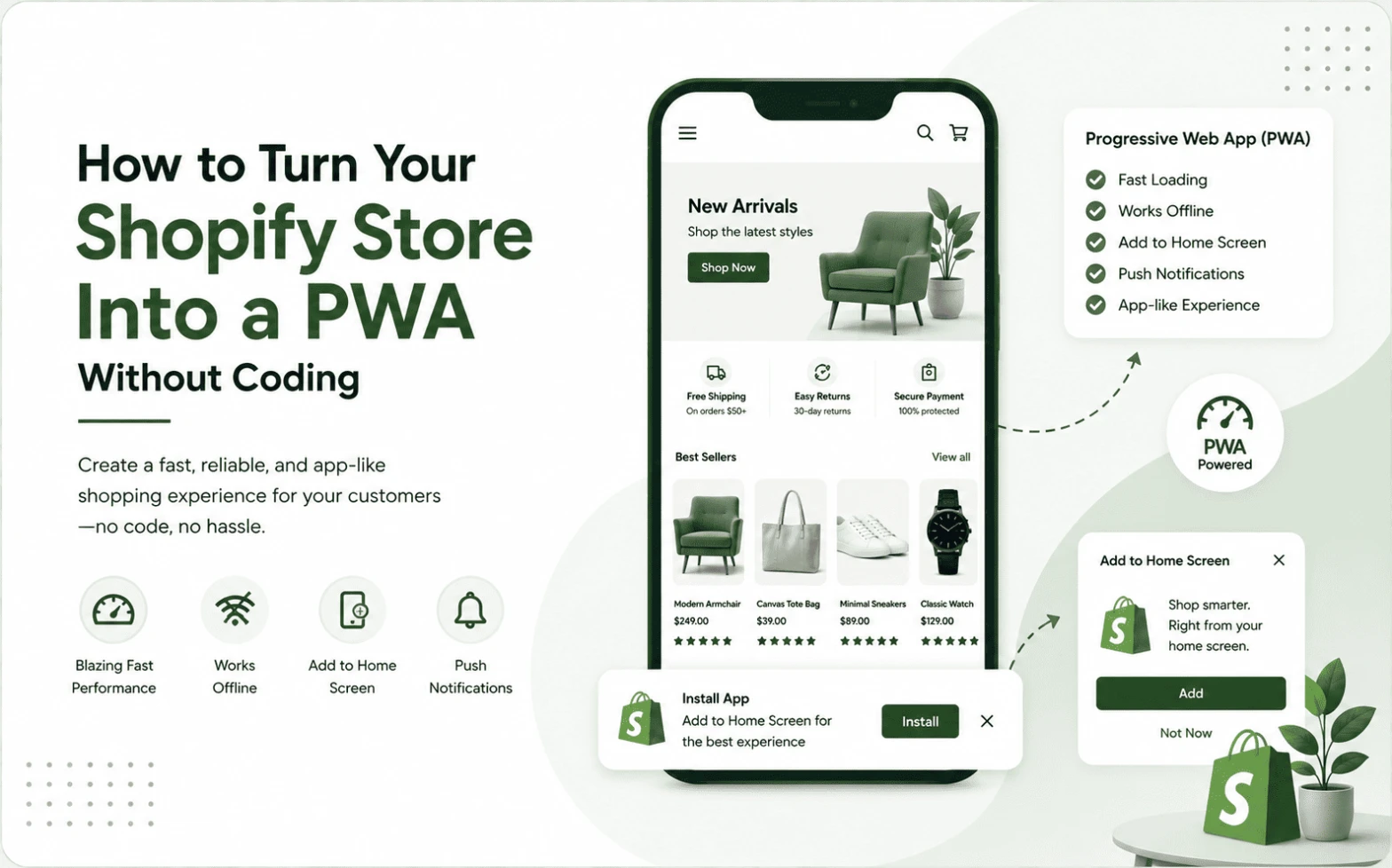
Most Shopify merchants already know their traffic skews mobile. What often gets missed is what happens after that first visit: a shopper closes the browser tab, and getting them back means another search, another load, another chance to lose them along the way.
A Shopify PWA without coding closes exactly this gap. You do not need a native mobile app or a development team to give your store an app-like mobile experience. A no-code progressive web app (PWA) can get you there with what your store already has.
Mobile devices accounted for 55.9% of global web traffic in March 2026, according to Shopify’s research. Even so, most of that traffic still lands on a browser tab rather than an installed icon, which is exactly why the home-screen entry point matters.
This guide skips the general PWA theory and instead focuses on the part merchants actually ask about: what turning a Shopify store into a PWA involves, what you need to do yourself, and where a Shopify PWA app like Qe PWA fits into that process.
What Actually Makes a Store Installable
A PWA relies on a few technical pieces, but you do not need to understand them to use one.
- Web app manifest: a small file that tells a phone how your store’s icon, name, and colours should appear once installed.
- Service worker: a background script that helps the browser manage cached pages, so parts of your store can still load when a connection drops.
- HTTPS: the secure connection Shopify stores already run on, which PWAs require.
- Installability: the ability for a shopper to add your store to their home screen directly from their browser, without visiting an app store.
In plain terms, these pieces work together so your store can behave like an app once it is on a customer’s phone. The technical setup happens behind the scenes, so what matters to you as a merchant is the outcome: a branded icon on a customer’s home screen and a faster way back to your store. If you are also weighing this against building a separate mobile app, our PWA vs native app comparison breaks down where each option makes sense.
Why Coding Has Traditionally Been the Barrier
Building a PWA from scratch means configuring a manifest file, writing and testing a service worker, deciding on a caching strategy, checking browser compatibility, and maintaining all of it as your theme changes. That is a real development project, and it is why many merchants assume a PWA is out of reach without hiring someone. In fact, only 3.5% of mobile sites currently have a complete PWA implementation with both a manifest and a service worker, according to the HTTP Archive’s 2025 Web Almanac, so most stores still have room to stand out here.
A no-code Shopify PWA app changes that equation. Instead of building the manifest and service worker yourself, you configure them through settings inside your Shopify admin: upload an icon, choose a splash colour, and enable the app. The underlying technology stays the same. The only difference is who does the configuration.
This distinction matters because it changes who a PWA is realistically available to. Custom PWA development suits stores with in-house engineering resources or very specific requirements. A no-code PWA app suits stores that want the same home-screen experience without adding a technical project to their to-do list.
How to Turn Your Shopify Store Into a PWA Without Coding
Here is what the process looks like in practice.
Step 1: Choose a Shopify PWA app Look for an app built specifically for Shopify’s Online Store 2.0 framework, rather than a generic PWA plugin. This avoids conflicts with your existing theme and keeps setup inside the Shopify admin you already use.
Step 2: Install the app Add the app from the Shopify App Store. This step alone does not change anything on your storefront yet; it gives you a settings panel to configure the PWA before switching it on.
Step 3: Add your brand assets Upload your store icon, set your app name, and choose a splash screen colour. This is what shoppers see the moment they tap your icon or watch it load, so it is worth matching your existing brand identity closely.
Step 4: Configure the PWA experience Review how the install prompt appears and confirm the app is reading from your live theme correctly before publishing anything to customers.
Step 5: Test the mobile experience Check your home page, product pages, collections, cart, and checkout on both iOS and Android. Test the install flow itself, and test what a returning visit looks like once the store is added to a home screen.
Step 6: Enable and promote installation Once testing is done, switch the PWA on. From here, it becomes another channel for returning shoppers to reach your store, alongside email, SMS, or social.
What Changes for Your Customers
Before a PWA, a returning shopper typically opens a browser, searches for your store name or types the URL, waits for the site to load, and browses from there. Every visit repeats that sequence.
With a PWA in place, a shopper installs the store once, and the icon stays on their home screen. Reopening it skips the browser and the search step entirely.
A fashion store might already have a responsive Shopify theme, but a customer who bought once still has to rediscover that store through a browser weeks later. A PWA changes the entry point: the icon is already there, waiting to be tapped.
Where supported, this can also include:
- Push notifications for restocks, new arrivals, or sales
- Continued access to recently viewed pages when a connection drops, thanks to PWA caching for Shopify
- A branded splash screen and standalone window, without browser tabs or address bars
However, support for these features varies by browser and device, particularly between iOS and Android, so it is worth checking what your chosen app confirms rather than assuming full parity everywhere.
Where Qe PWA Fits
Once the setup process above is clear, the practical question becomes which app handles it. Qe: PWA for iOS & Android by QeApps is built for exactly this no-code path, and it lines up with the Shopify PWA benefits merchants are usually trying to unlock in the first place.
Setup takes under two minutes inside the Shopify admin and does not require theme edits. It works with all Online Store 2.0 themes and custom setups, so most merchants can enable it without touching code. As a result, Qe PWA earned the Built for Shopify badge, which recognises apps that meet Shopify’s standards for performance and quality.
The core plan includes push notifications for iOS and Android, an add-to-home-screen flow shoppers complete in one tap from their browser, custom branding for icons and splash colours, and offline support: if a connection drops, shoppers can keep browsing recently viewed pages and move a step forward or back rather than hitting a blank screen. If you uninstall the app, your store reverts to normal with no leftover scripts.
Qe PWA is a practical route for merchants who want the home-screen experience described above without taking on a custom development project, not a promise of specific conversion or revenue gains.
The Practical Next Step
If your Shopify store already works reasonably well on mobile, a full native app project may be more than you need. A no-code PWA gives returning shoppers a faster way back to your store, without adding a development timeline to your plate.
Turn your Shopify store into a PWA without coding.
Explore Qe PWA or install Qe PWA from the Shopify App Store.
Frequently Asked Questions
Q.1 Can I turn my Shopify store into a PWA without coding?
Yes. A Shopify PWA app configures the manifest and service worker behind the scenes, so you set up branding and install options through your Shopify admin rather than writing code yourself.
Q.2 Do I need a developer to create a Shopify PWA?
Not for a no-code PWA app. Custom PWA development still needs a developer, but a no-code PWA app lets you configure everything yourself, directly inside your Shopify admin.
Q.3 How do I make my Shopify store installable?
Install a Shopify PWA app, add your icon and brand colours, and enable it. Shoppers can then add your store to their home screen in one tap from their browser.
Q.4 What is the difference between a Shopify PWA and a native app?
A PWA runs through the browser and installs without an app store, while a native app is built separately for iOS and Android and downloaded through Apple’s App Store or Google Play. A PWA is generally faster to set up and does not require app store approval. For a closer look, see our PWA vs native app comparison.
Q.5 Can a Shopify PWA work offline?
Offline support depends on the app you use. With Qe PWA, shoppers can keep browsing recently viewed pages and navigate a step forward or back if their connection drops, rather than full offline shopping.
Related Blogs




 [email protected]
 +91 95747 42204
 9th Floor, Solitaire Connect, Near Gallops Motors, SG Highway, Ahmedabad, Gujarat 380015


